Beat detection for DaVinci Resolve with timeline marker EDL
Export a .edl cut list file from Beat2Cut and choose Timelines → Import → Timeline Markers from EDL in DaVinci Resolve. Yellow beat markers named Beat 1, Beat 2, and onward land directly across your active timeline ruler without altering existing edits.
- Runs entirely in your browser without uploading
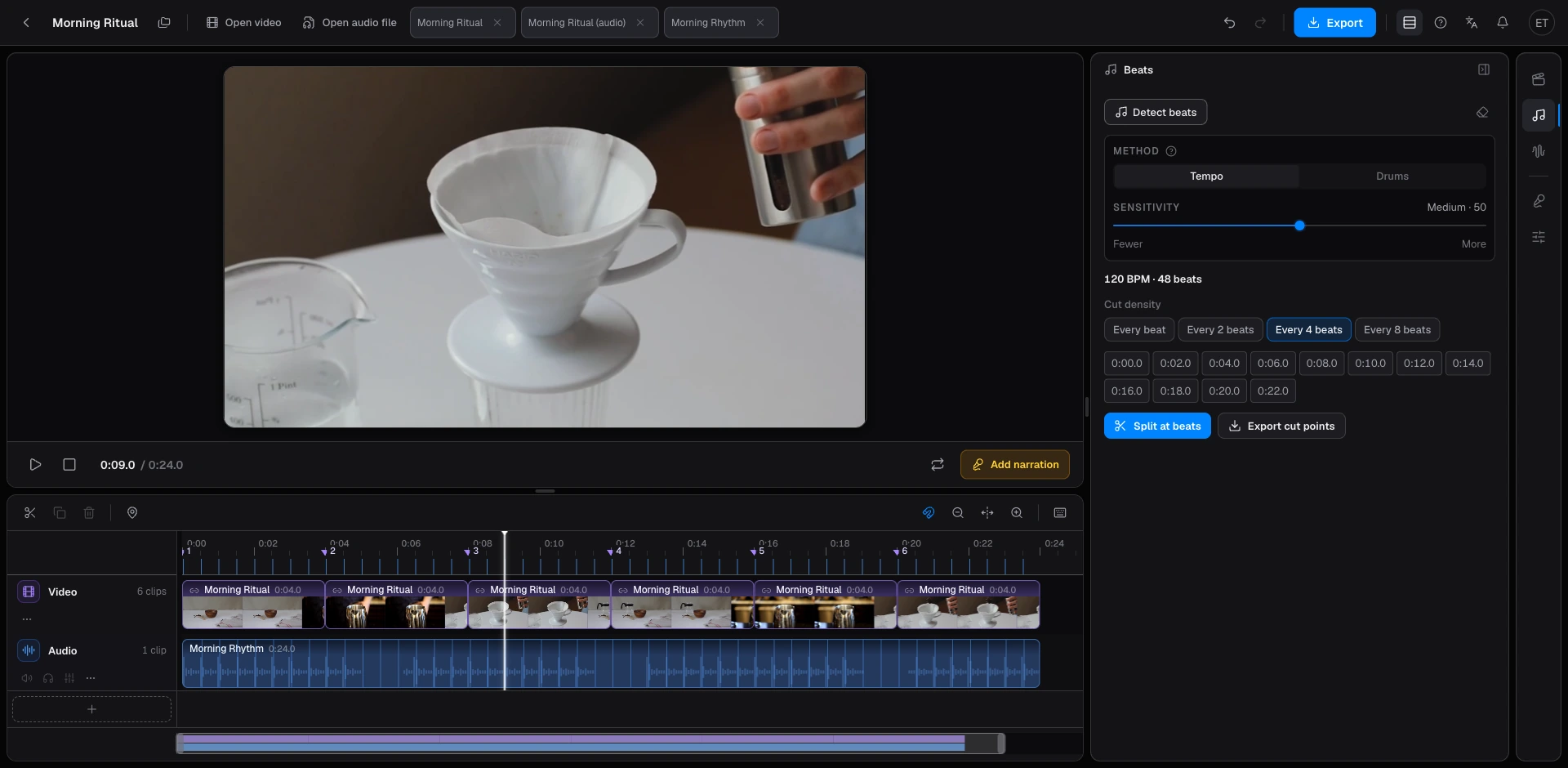
How marker EDL applies yellow markers to your timeline
DaVinci Resolve editors rarely want to rebuild their editing sequence from scratch just to see beat locations. Beat2Cut exports a marker EDL formatted in the standard CMX3600 layout.
Instead of creating a conform timeline that demands reel names or source timecode metadata, this file works through Timelines → Import → Timeline Markers from EDL. It places markers straight onto the timeline you already built.
Every beat appears as a yellow marker on your ruler, named Beat 1, Beat 2, Beat 3, and so on. (If you also run scene detection, shot cuts are marked in blue, making the two types instantly distinguishable.) No source clips are modified or rearranged.
Why Start timecode and Frame rate dictate success
Marker EDL files carry strict timecode expectations. The export dialog features two critical settings: Frame rate and Start timecode.
The Start timecode must precisely match the start timecode of your timeline in DaVinci Resolve. When you create a new timeline in Resolve, the default start is usually 01:00:00:00, whereas timelines generated directly from source clips often begin at 00:00:00:00. If these timecodes do not match, the markers land outside the timeline boundaries, and Resolve silently discards them without an error message.
Matching the Frame rate is equally essential. Auto defaults to the frame rate of any video on your browser timeline, or falls back to 30 fps for standalone audio. If your Resolve timeline is set to 24 fps, Resolve will not reject an incorrect 30 fps EDL; instead, non-existent frame positions roll over to valid intervals, causing markers to arrive between 0 and 0.25 seconds late. For 29.97 and 59.94 fps timelines, Beat2Cut exports drop-frame timecode properly.
Marker EDL vs FCPXML: choosing the right Resolve workflow
Beat2Cut offers two different pathways to send cut points to DaVinci Resolve:
Choose DaVinci Resolve (EDL) when you already have footage laid out on a timeline and want only yellow beat markers stamped across the ruler to guide your rhythm.
DaVinci Resolve 16 and later can also import FCPXML 1.8, the file Beat2Cut writes for Final Cut Pro. That file is laid out for Final Cut, with the song plus a project around it, so for beat markers in Resolve the marker EDL is the path we recommend and the one this page describes.
Local detection without plugins or extra software
You do not need third-party scripts, OFX plugins, or external utilities to generate beat markers for Resolve. The Studio workspace (/studio) performs audio processing locally in the browser, keeping your media files private on your machine.
In the Beats panel, select Music Tempo for steady pop and electronic tracks, or Drum Beat for heavy kick drums in EDM, hip-hop, and trap. Use the sensitivity slider to dial in beat density, check the detected BPM, and review markers under the ruler. Exporting beat markers requires a free account and never uses credits.
How to get beat markers into DaVinci Resolve
- 01Open /studio in your browser and load your audio track or soundtrack video (media files are processed locally and never uploaded).
- 02In the right-hand rail, open the Beats panel, select Music Tempo or Drum Beat, adjust sensitivity, and run detection to view BPM and beat points.
- 03Check the start timecode of your target timeline inside DaVinci Resolve (01:00:00:00 for new default timelines, or 00:00:00:00 for clip-generated timelines).
- 04In the Beats panel, click Export cut points, pick DaVinci Resolve (EDL) under Send to editor, and align both Frame rate and Start timecode with your Resolve timeline.
- 05In DaVinci Resolve, select your timeline and click Timelines → Import → Timeline Markers from EDL to load the .edl file.
- 06Turn on snapping in Resolve and align your edits to the yellow Beat N markers on the ruler.
Questions
- Why did no markers appear after importing the EDL into DaVinci Resolve?
- This almost always means the Start timecode did not match. A standard new timeline in Resolve starts at 01:00:00:00, while timelines created directly from a media clip frequently start at 00:00:00:00. When the EDL start timecode differs from your timeline start, markers fall outside your timeline range and Resolve discards them without showing an error. Re-export with the exact matching Start timecode.
- Why do my markers land up to a quarter of a second late?
- When the export Frame rate does not match your Resolve project frame rate, Resolve does not display an alert. For example, importing 30 fps timecode markers into a 24 fps timeline forces invalid frame positions to push forward, creating random delays between 0 and 0.25 seconds. Ensure you select the matching Frame rate (such as 23.976, 24, 25, 29.97, 30, or 60) in the export dialog.
- Can I import beat markers onto my current edit without rebuilding clips?
- Yes. The marker EDL workflow is designed specifically for existing timelines. DaVinci Resolve imports the yellow Beat N markers directly onto your timeline ruler. It does not touch your footage cuts, track routing, or reel numbers.
- When should I export FCPXML instead of EDL for DaVinci Resolve?
- For beat markers, use the EDL: it is the format built for Resolve and it lands on the timeline you already have. Resolve 16 and later can read FCPXML 1.8 as a new timeline, but that file is laid out for Final Cut Pro, so treat it as a fallback rather than the main route.