Beat detection for Final Cut Pro: FCPXML beat markers
Export a .fcpxml file from Beat2Cut and choose File → Import → XML in Final Cut Pro. You receive an event and project with your song in the primary storyline, beat markers named Beat 1, Beat 2, and connected alternating placeholder clips ready for replacement.
- Runs entirely in your browser without uploading
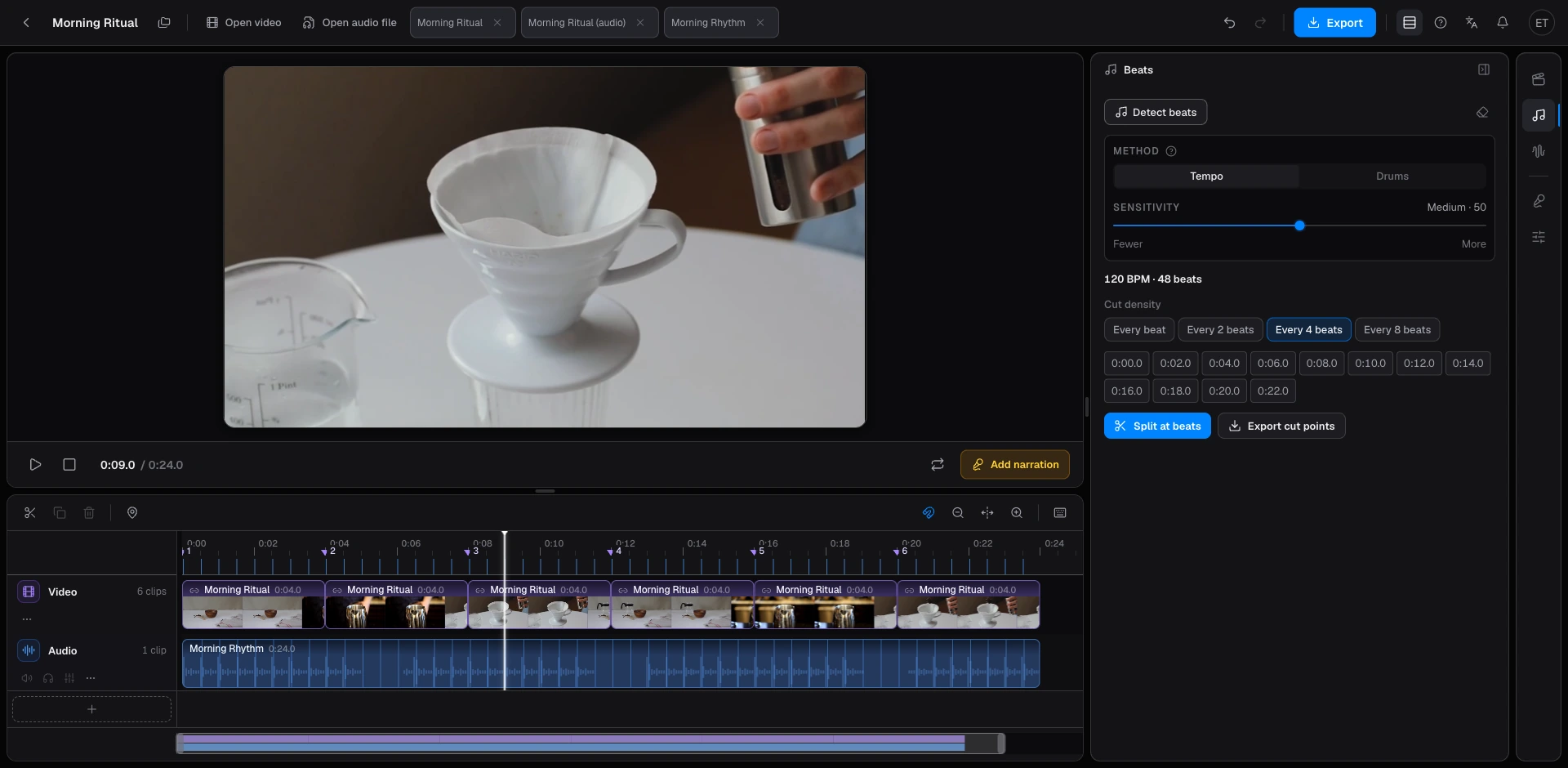
What Final Cut Pro receives: markers and alternating placeholders
Final Cut Pro editors often tap the M key manually to mark music beats, which is tedious and prone to human timing errors. Beat2Cut exports structured FCPXML 1.8 files, natively supported in Final Cut Pro 10.4.6 and all subsequent versions.
Importing through File → Import → XML creates two items in your Library: a new Event containing your audio clip with embedded Beat 1, Beat 2 markers, and a dedicated project named <Song Name> Project.
Opening the project reveals your song on the primary storyline, decorated with matching beat markers. Connected directly above each beat marker is a native Final Cut Pro Placeholder generator clip. Each placeholder spans from one beat to the next, with alternating Framing presets on adjacent clips. This layout provides an instant visual rhythm: simply use Final Cut Pro's Replace edit to swap each placeholder with your selected camera shots.
Frame rate alignment and drop-frame timecode
For Final Cut Pro the export dialog asks for one setting, the Frame rate. The FCPXML file defines its own project, so there is no start timecode to match.
The Frame rate defaults to Auto, which follows the video frame rate if a video file is loaded on your browser timeline. When working with pure audio tracks, Auto falls back to 30 fps. Because of this, you should manually select the intended frame rate of your Final Cut Pro project (options include 23.976, 24, 25, 29.97, 30, 50, 59.94, and 60 fps).
If the frame rate does not match your project, Final Cut Pro will not raise an error upon XML import. Instead, marker timestamps and placeholder cut boundaries are quantized to the wrong frame intervals, drifting away from the true musical downbeats. For 29.97 and 59.94 fps timelines, Beat2Cut correctly labels drop-frame (DF) timecode in the XML declaration.
Browser-based beat detection without plugins
You do not need to install macOS extensions or FCP plugins to generate beat markers. Detection runs in your browser, and your music files never leave your device.
In the Studio workbench (/studio), open the Beats panel on the right-hand rail. Choose Music Tempo for steady pop, rock, or electronic rhythms, or Drum Beat for punchy kicks in EDM, hip-hop, and trap. Adjust the sensitivity slider to control marker density, then view the detected BPM and marker ruler display.
Running beat detection does not require signing in. Exporting your beat markers as an FCPXML cut list requires a free account, and it deducts zero credits on any plan. For a deeper workflow guide, read our tutorial on beat markers in Final Cut Pro (/blog/final-cut-pro-markers-from-audio/).
How to get beat markers into Final Cut Pro
- 01Open /studio in your browser and drag in your audio track or soundtrack video (files are processed locally without uploading).
- 02Open the Beats panel in the right rail, choose Music Tempo or Drum Beat, adjust sensitivity, and run detection to view BPM and marker positions.
- 03Click Export cut points in the Beats panel and select Final Cut Pro (FCPXML) under the Send to editor group.
- 04Select the Frame rate that matches your planned Final Cut Pro timeline (or keep Auto if already aligned to video).
- 05In Final Cut Pro, choose File → Import → XML and select the downloaded .fcpxml file.
- 06Open the newly generated project, relink your local audio if marked offline, and replace the alternating placeholder clips with your footage.
Questions
- Why does my audio clip appear offline after importing the XML into Final Cut Pro?
- Because Beat2Cut operates in your web browser, it has no permission to read the local file paths of your Mac. In Final Cut Pro, highlight the audio clip, choose File → Relink Files → Original Media, and navigate to your audio file. Your Beat 1, Beat 2 markers and placeholder clips remain intact.
- How do the alternating placeholder clips speed up cutting to music?
- Rather than leaving you to manually place video clips against thin marker ticks, the FCPXML export builds connected Placeholder generator clips spanning between each beat. Adjacent placeholders use alternating Framing angles, giving you clear visual edit blocks that you can quickly overwrite with your own footage using Replace edits.
- Which versions of Final Cut Pro can import this FCPXML file?
- Beat2Cut writes standard FCPXML version 1.8. This format is supported by Apple Final Cut Pro version 10.4.6 and all newer releases without requiring external conversion tools.
- Does exporting beat markers to Final Cut Pro cost any credits?
- No. Beat detection is available without signing in, and exporting cut lists with only beat markers is free after creating a free account. No credits are deducted on Free or Pro tiers.