Beat detection for Premiere Pro with auto XML sequence markers
Export a -premiere.xml file from Beat2Cut and choose File → Import in Adobe Premiere Pro. You get a new sequence containing your full song on audio track A1 and point markers named Beat 1, Beat 2, and so on at every rhythmic hit, ready for snapping.
- Runs entirely in your browser without uploading
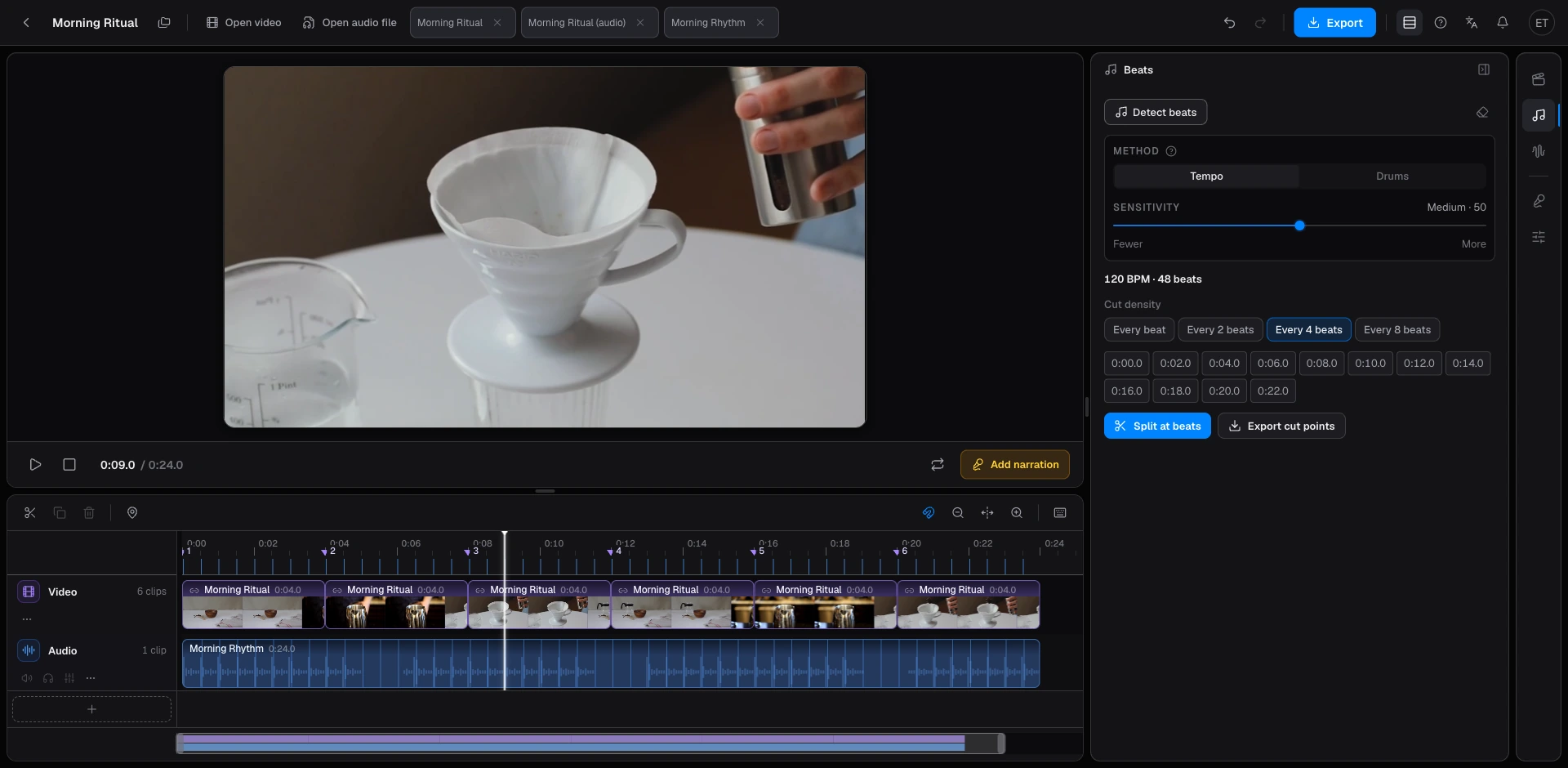
What Premiere Pro receives from the XML sequence
Premiere Pro does not provide a native menu to import marker files from CSV tables. Beat2Cut bridges this by exporting a classic FCP7-style XML file (with a -premiere.xml suffix). When you import this file through File → Import, Premiere generates a brand new sequence inside your Project panel.
Your music file sits on audio track A1 across the entire duration, while the video tracks remain empty. Every detected beat appears as a standard sequence point marker directly on the sequence ruler, consistently labeled Beat 1, Beat 2, Beat 3, and upward. It will not alter or overwrite any of your existing sequences.
To build your edit, simply drag your video footage onto the video tracks above the music. With timeline snapping turned on (the magnet icon or S key), your clip heads, tails, and cut points naturally snap to the exact frame of each beat marker.
Why matching the sequence frame rate is critical
For Premiere Pro the export dialog asks for one thing: the Frame rate. There is no start timecode to set, because the XML builds its own new sequence and declares its start as 00:00:00:00, so every marker position is counted from the same zero.
However, the Frame rate setting demands close attention. By default, Beat2Cut sets this to Auto, which inherits the frame rate of any video currently on your browser timeline. If you are analyzing a standalone audio track with no video loaded, Auto defaults to 30 fps as a fallback. If your planned Premiere editing sequence is 23.976, 24, 25, 29.97, 50, 59.94, or 60 fps, choose that exact rate manually from the dropdown menu.
When frame rates do not match, Premiere Pro will not display an error message upon import. Instead, it quantizes each beat timestamp to the wrong frame boundaries, causing your markers to drift out of synchronization with the music. For 29.97 and 59.94 fps workflows, Beat2Cut properly exports standardized drop-frame timecode.
Browser-based analysis instead of Premiere plugins
Many editors search for third-party beat detection plugins, extensions, or panel add-ons for Premiere Pro. Beat2Cut eliminates the need to install extra software or background utilities. Audio analysis runs entirely inside your browser, and your music files are never uploaded to any remote server.
Inside the Studio workspace (/studio), the Beats panel in the right-hand rail provides two detection algorithms: Music Tempo for steady pop, rock, and electronic songs, and Drum Beat for bass-heavy EDM, hip-hop, and trap. Adjust the sensitivity slider to capture subtle off-beats or isolate major downbeats. The tool outputs a calculated BPM value and renders beat markers beneath the ruler for instant inspection.
How to get beat markers into Premiere Pro
- 01Open /studio in your web browser and drag in your music track or soundtrack video (the audio file stays local and never uploads).
- 02Open the Beats panel in the right-side rail, pick Music Tempo or Drum Beat, adjust the sensitivity slider, and run detection to inspect your BPM and markers.
- 03Click the Export cut points menu in the Beats panel and choose Premiere Pro (XML) under the Send to editor section.
- 04In the export dialog, set the Frame rate to the rate of the Premiere sequence you plan to cut in.
- 05In Adobe Premiere Pro, select File → Import and choose the exported -premiere.xml file from your downloads.
- 06Open the newly created sequence in your Project panel, relink your source audio file if it shows offline, and drag your video clips in with snapping on.
Questions
- Why does the imported audio clip show as offline in Premiere Pro?
- This is completely normal. Because Beat2Cut operates in a browser sandbox, it cannot discover the local disk path of your media. In Premiere Pro, right-click the offline audio clip, select Link Media, and locate your original audio file on your drive. All Beat 1, Beat 2 markers remain intact.
- Will importing this XML sequence overwrite my existing timeline?
- No. File → Import creates an independent sequence in your Project panel and leaves your existing sequences as they are. The markers belong to that new sequence, so build the music-driven part of your edit inside it.
- Why are my beat markers slightly misaligned with the audio rhythm?
- This occurs when the Frame rate chosen during export does not match your Premiere sequence frame rate. Premiere quantizes marks to the nearest frame without throwing a warning. Always verify whether your sequence runs at 23.976, 24, 25, 29.97, 30, or 60 fps and match that value before exporting.
- Does exporting beat markers for Premiere Pro require credits?
- No credits are charged on any plan for beat detection or beat cut lists. You can run beat detection in your browser without signing in. Exporting the beat marker XML sequence requires a free account, and it never deducts credits from your balance.