Blur faces in video without uploading it
Yes, and the video is not uploaded: Beat2Cut Desktop finds and covers faces on your own computer. It is free to download; using it on your own videos needs Beat2Cut Pro ($20 a month, or $120 a year), and monthly Pro starts with 7 days free.
Free to download. Using it on your own videos needs Beat2Cut Pro; monthly Pro starts with 7 days free (add a payment method to start; cancel before the 7 days end and you pay nothing). Without Pro the app opens its built-in demo.
For Mac with Apple silicon (macOS 12 or later) and Windows 10 or 11 (64-bit).
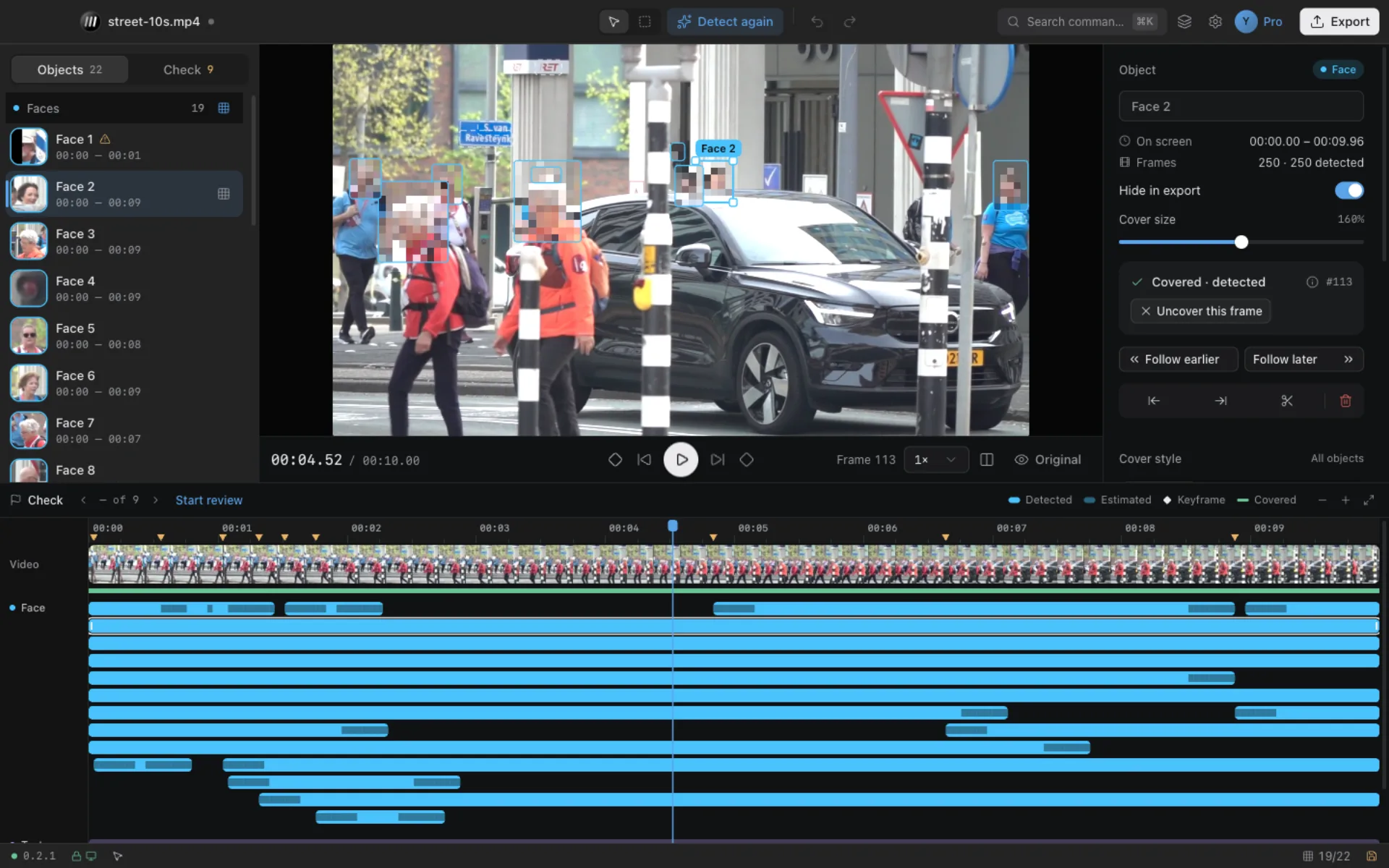
Faces are found and followed for you
Faces are detected automatically and followed through each shot, so you do not draw a box around every person who walks through the frame.
Anything the detector does not look for can be covered too. Draw a box around it, such as a logo, a document or a screen, and the app follows it forward and backward through the shot.
Check every face, one object at a time
Every covered object is one row on the timeline, not a long run of frames to scrub through. Step through the rows, fix a miss with a keyframe, and hide the objects that do not need covering.
Detection is automatic but you sign off: go through the list before you export, and add a box for anything the app missed.
Mosaic, blur, black or erase
Choose mosaic, blur, solid black or erase, as a rectangle or an ellipse. You can export a finished video with the covers burned in, a transparent overlay to place over the original in your editing software, or a black-and-white matte. Several videos can be processed in one batch.
How fast it runs, and where the video stays
In our own tests, detection on 1080p video ran at about 30 frames per second on an Apple M4 and about 20 frames per second on a Windows PC with an RTX 2080 Ti. Those are two machines, not a promise: your computer, your footage and your settings will give different numbers.
Detection, tracking and export all run on your machine and the video is never uploaded. The app goes online only to sign you in and to confirm your plan each time it opens.
How to blur faces in a video
- 01Create a free Beat2Cut account, verify your email and download Beat2Cut Desktop for Mac or Windows.
- 02Open the app, sign in, and open a video from your disk. Nothing is sent anywhere.
- 03Choose faces as the thing to look for and run detection. Go through the list, add what was missed and remove what should stay visible.
- 04Pick mosaic, blur, solid black or erase, then export the covered video, or an overlay or matte for your editing software.
Questions
- Is my video uploaded when I blur faces?
- No. Detection, tracking and export all run on your own computer, and the video file stays there. The app contacts Beat2Cut only to sign you in and to confirm your plan each time it opens; once open, it keeps working without a connection for up to 12 hours.
- How much does it cost?
- Beat2Cut Desktop is free to download with any Beat2Cut account that has a verified email. Using it on your own videos needs Beat2Cut Pro: $20 a month or $120 a year, for up to 3 computers, with no credits spent in the app. Monthly Pro starts with 7 days free (a payment method is needed to start; cancel before the 7 days end and you are not charged). Yearly Pro has no free days.
- How do I try it before paying?
- Download the app, sign in with your Beat2Cut account and open the built-in demo, which works without Pro. To run it on your own video, start monthly Pro: the first 7 days are free, and you can cancel before they end to pay nothing.
- Will it find every face?
- Faces are detected automatically, but no detector is perfect, which is why every covered object is listed for you to check. Step through the list before you export, add a keyframe where the cover slips, and draw a box around anything that was missed.
- Which computers does it run on?
- Mac computers with Apple silicon, on macOS 12 or later, and 64-bit Windows 10 and 11.