Find and remove um, uh, and repeated filler words
Detect hesitation words, stutters, and verbal fillers in dialogue. Audition candidate cuts, ripple-delete them across all tracks, or export clean subtitles. Video stays on your device.
- Your video stays on your device; only a compressed audio copy is sent for transcription
- 10 credits a file on Free, from your 150 one-time free credits; Pro has no limit. Sign in required.
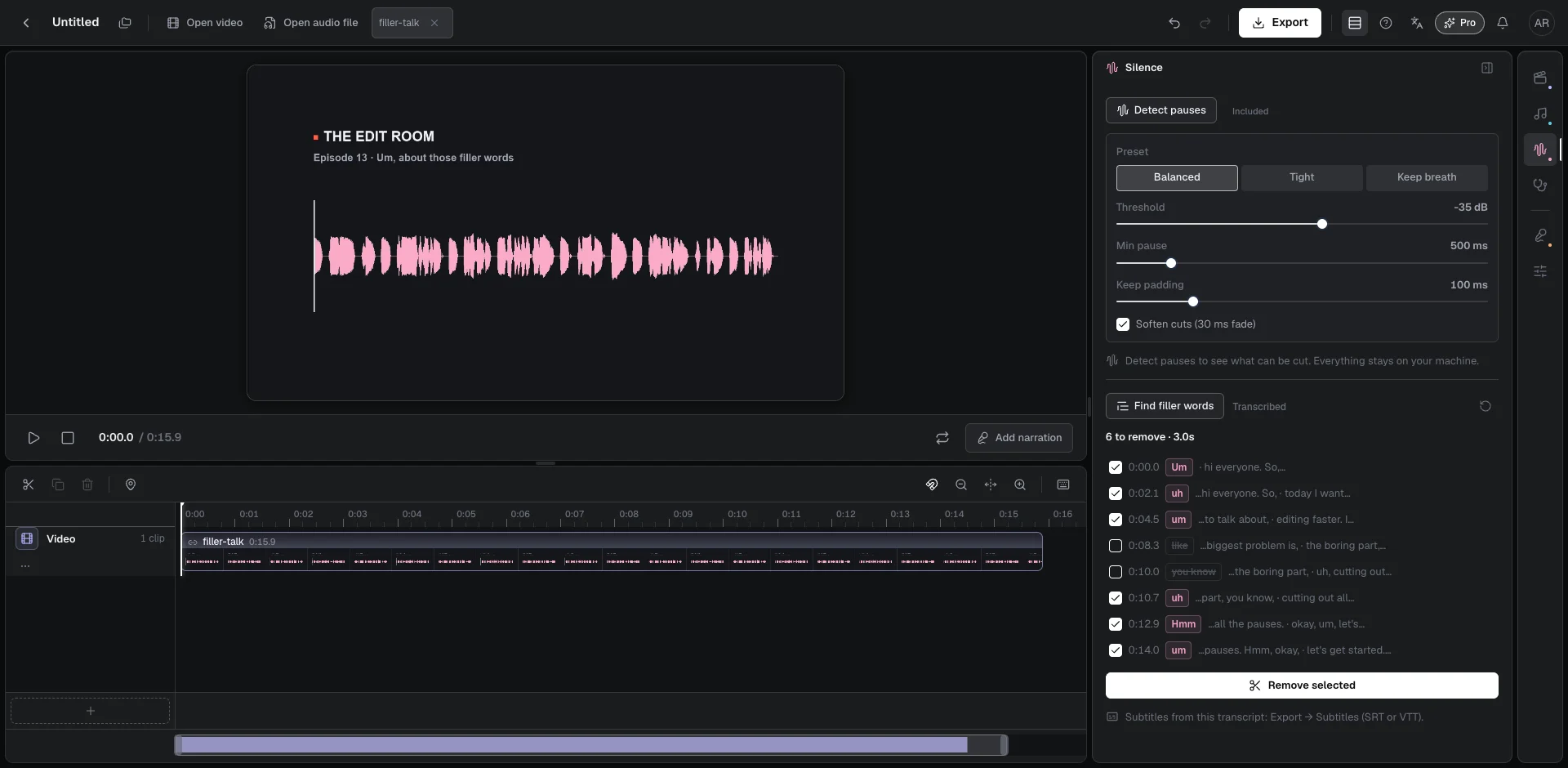
- Three review categories: verbal fillers and repeated words checked by default; contextual phrases left unchecked for review.
- Audition detected words 1.2 seconds before each cut, then ripple-delete selected candidates across every track in one pass.
- Cuts absorb half of surrounding pauses to safeguard speech boundaries; the same transcript exports clean SRT and VTT subtitles.
Filler word remover scans speech in your dialogue, podcast, or interview footage to locate hesitation sounds like um and uh, repeated stutters, and contextual filler words. Review candidate cuts in an interactive checklist, audition the surrounding phrase, and execute a multi-track ripple delete in a single pass. Each file transcription costs 10 credits on Free, drawn from your 150 one-time free credits, and is included with Pro. Sign in with a free account to begin. Your video stays on your computer.
An interactive review list prevents destructive automated cutting. Simple automated tools often slice audio indiscriminately, removing words that were spoken intentionally or cutting off the end of a sentence. Beat2Cut groups detected words into three distinct categories. Obvious verbal fillers such as um, uh, erm, and hmm, along with multilingual hesitation sounds like euh or äh, are checked by default. Accidental repeated words, such as stuttering the first word in a phrase, are also checked by default. Contextual phrases like you know, basically, or like are unchecked by default, allowing you to listen before deciding.
Previewing candidate cuts takes a single click. Selecting any row in the list jumps the timeline playhead to 1.2 seconds before the detected word, letting you hear the full phrase and natural vocal cadence. When you remove a filler word, the cut does not snap rigidly to word edges. Instead, the edit boundary extends outward to absorb half of the adjacent quiet pause before and after the word. This protective buffer prevents clipped consonants, swallowed syllables, or sudden audio pops.
Every deletion executes as a unified multi-track ripple cut. When checked filler words are removed from dialogue, overlying camera angles, B-roll clips, and secondary audio tracks ripple backward together in lockstep. This synchronized trimming maintains exact audio-video alignment and avoids accidental black frames. The entire batch deletion registers as a single action in timeline history, so a single click of the undo button restores every track to its original state.
Billing is transparent and predictable. Transcribing a media file costs 10 credits on Free, deducted from the 150 one-time free credits provided at registration; Pro includes every transcription. Because the resulting transcript is cached in your browser, you can re-run the search and change checklist selections on that same file without paying again. Exporting the transcript as SRT or VTT subtitles is a separate delivery at 5 credits on Free, also included with Pro. Audio beat detection and beat-only cut lists remain free on every plan.
The editing workflow is organized directly within Beat2Cut Studio. Import your talking-head footage, open the Talk cleanup panel on the right rail, and scroll to Find filler words. Choose your spoken language or keep automatic detection selected. On your first scan, a quick prompt asks for your consent to transcribe the audio track. Once processing completes, audition candidates from the checklist, adjust selections, and click Remove selected to tighten the speech track.
Privacy is built into the transcription pipeline. Your original video footage never leaves your computer. The browser decodes only the audio stream, splits speech at quiet intervals into manageable chunks, downsamples the audio to a lightweight 16 kHz mono track, and transmits only this compressed audio for speech recognition. Word-level timestamps return directly to your browser and are saved only there. No video frames, project names, or edited timelines are uploaded.
Language support handles varied global accents and speech patterns. You can rely on automatic detection or manually specify English, Chinese, Spanish, French, or German. Customized recognition prompts instruct the speech model to retain hesitation tokens rather than filtering them out. You can also combine filler word removal with silence detection: eliminate long dead pauses first, then clear lingering verbal crutches second for an authentic, fast-paced dialogue cut.
The generated transcript delivers double value during project delivery. Under Export in the top navigation bar, choose Subtitles to generate SRT or VTT caption files directly from your transcript. Because subtitle cues map dynamically to timeline edit points, captions stay in sync with your ripple-deleted cuts, and removed filler words never appear in your subtitles. Each subtitle export is a 5-credit delivery on Free and included with Pro, and you can hand off the captions alongside an FCPXML, Premiere XML, or Resolve EDL cut list.
Find filler words, preview them, and ripple delete
- 01Open a talking-head video or audio clip in Beat2Cut Studio.
- 02Open the Talk cleanup panel on the right rail and click Find filler words.
- 03Click any detected word to preview the audio 1.2 seconds before the cut.
- 04Click Remove selected to ripple-delete the gaps across all tracks.
Questions
- Why are filler words shown in a checklist instead of removed automatically?
- Automated cuts often remove intentional words like 'like' or 'basically'. The checklist sorts words into three clear types and lets you listen first. You uncheck words you want to keep, then remove the rest in one pass with full undo safety.
- Does filler word detection upload my video files?
- No. Your video never leaves your computer. Beat2Cut extracts only dialogue, compresses it to a lightweight 16 kHz mono audio file, and sends that for transcription after asking your permission. The transcript is stored locally in your browser.
- When does filler word removal charge credits?
- Transcription costs 10 credits per file on Free, from your 150 one-time signup credits; Pro includes it. Searching that transcript again or changing selections is free. Exporting it as SRT or VTT subtitles is a 5-credit delivery on Free, included with Pro.
- Can removing filler words clip nearby speech or desync other tracks?
- Each cut takes half of the quiet pause on either side, so the seam lands in silence rather than on a neighboring word. Cuts ripple across every audio and video track together, and one undo restores them all.