Convert video to MP4, WebM, or 9:16 vertical
Convert video to MP4, MOV, WebM or audio, reframe to 9:16 with a blurred background, and fix variable frame rate in your browser. No upload.
- Runs entirely in your browser without uploading
- 5 credits per export, from 100 free credits each month. Sign in required.
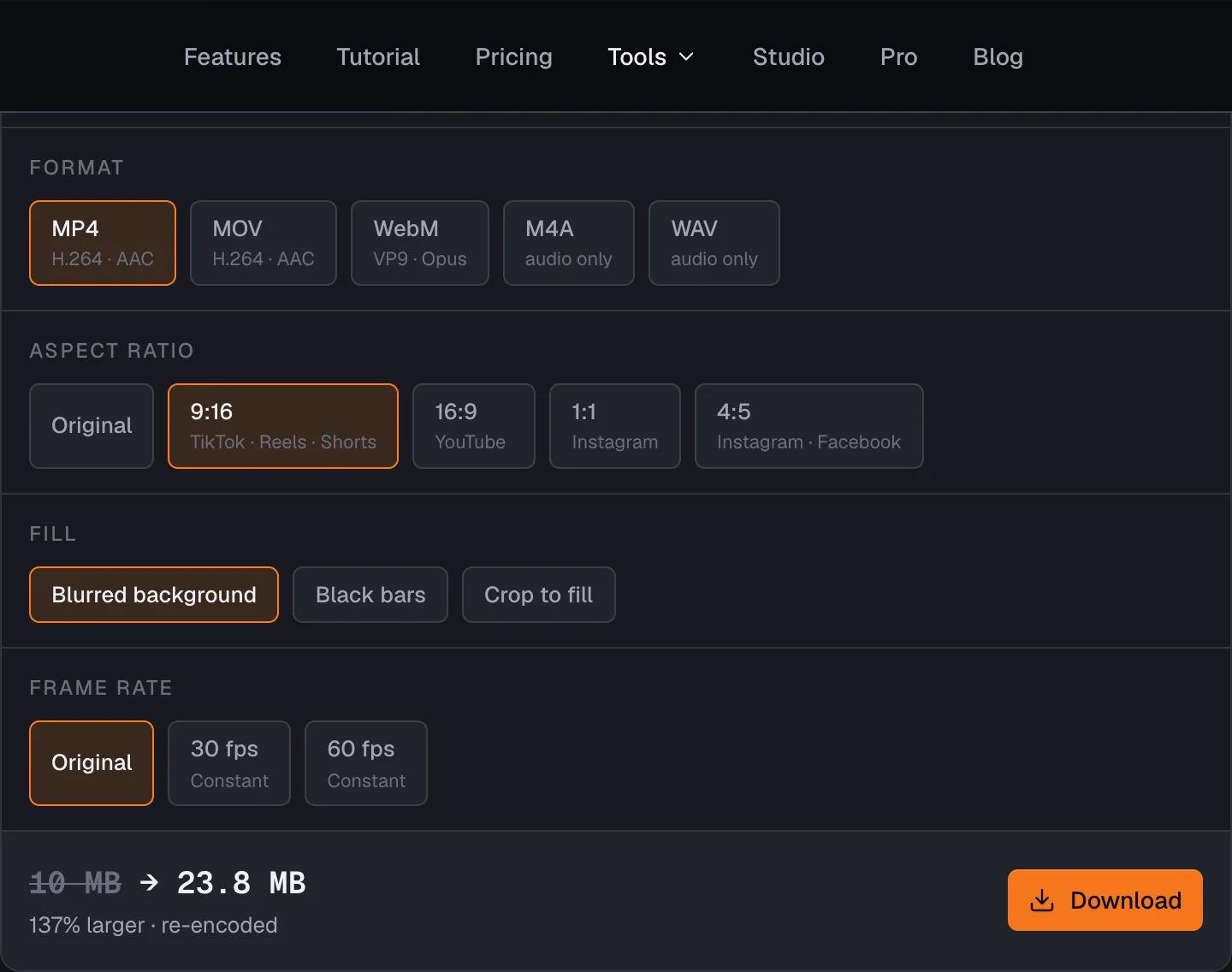
Beat2Cut converts video containers, aspect ratios, and frame rates right in your browser without uploading your media. Switch between MP4, MOV, WebM, or extract the audio to WAV and M4A. Reframe landscape clips into vertical 9:16 formats for TikTok and Shorts using blurred borders. Each conversion costs 5 credits from the 100 a free account gets every month, and is covered by Pro.
When your source file already uses compatible video and audio codecs (such as H.264 video inside a QuickTime MOV container switching to MP4), the converter copies encoded media packets directly without recompression. This container remuxing process finishes in seconds, and keeps the original picture untouched. Full re-encoding only engages when you change codecs, alter aspect ratios, or convert frame rates.
Social distribution frequently demands vertical 9:16 (1080×1920) or square 1:1 (1080×1080) framing for platforms like Reels, TikTok, and Instagram. When aspect ratios differ, you can choose between three fill modes: a soft blurred background that preserves the full image without cropping people, standard black letterboxing bars, or a centred crop that fills the frame edge to edge.
Smartphones and screen recording utilities frequently output variable frame rate (VFR) media to conserve storage during static scenes. When imported into desktop editing software, VFR files cause severe audio drift and creeping sync errors. Converting your clip to a constant 30 fps or 60 fps locks frame intervals to an exact clock, curing sync drift before you begin cutting.
Processing and export rendering occur entirely inside your browser memory. For massive 4K footage on mobile devices or laptops with limited RAM, browser memory constraints may interrupt long jobs. A modern release of Chrome, Edge, Safari, or Firefox is required. Each export uses 5 credits from your 100 monthly allowance, while Pro subscribers convert without limits.
Convert video format, aspect ratio, or frame rate
- 01Open your video file in the converter.
- 02Choose your target format (MP4, MOV, WebM, M4A, or WAV).
- 03Select an aspect ratio like 9:16 and pick a fill style, or select a constant frame rate.
- 04Click Convert and download your finished file directly from browser memory.
Questions
- Can I convert a horizontal video to vertical without cropping?
- Yes. Choose the 9:16 aspect ratio (1080×1920) and select the blurred background fill. Your original wide video stays sharp and uncropped in the center, while a matching blurred copy fills the top and bottom margins, meeting vertical platform standards without cutting out subjects.
- Why does converting MOV to MP4 finish so quickly?
- When your MOV file already contains standard H.264 video and AAC audio, Beat2Cut performs a lossless stream copy into the MP4 container. Because pixels and audio samples are repackaged rather than decoded and recompressed, the transfer completes in seconds with zero loss of picture quality.
- How does constant frame rate conversion fix audio sync drift?
- Variable frame rate (VFR) footage from phones and screen recorders records fewer frames during still moments, causing desktop editing suites to lose synchronization over time. Converting to constant 30 fps or 60 fps gives every frame the same duration, ensuring picture and sound stay locked together throughout your timeline.
- What are the duration and credit limits for video conversion?
- Each successful conversion costs 5 credits from the 100 free credits you get every month after signing in, so about 20 conversions a month cost nothing; Pro includes them. A failed or cancelled job is never charged.
- Export MP4 (H.264/AAC), MOV, WebM (VP9/Opus), or extract audio directly to M4A and WAV.
- Reframe to 9:16, 16:9, 1:1, or 4:5 with blurred background fill, letterbox fit, or crop.
- Changing only the container copies the stream without re-encoding; constant 30 or 60 fps fixes variable frame rate.
Other tools
Detection & Rough Cut
- Silence Remover5 creditsDetect pauses and hesitation gaps across talking-head or podcast footage. Audition candidates and ripple-delete them in one pass with zero upload.
- Scene Detection5 creditsFind hard cuts and scene changes in the browser, review them on the timeline, then split or export a cut list. 5 credits a run from 100 free each month.
- Beat DetectionFree · unlimitedFind beats in a song or a mixed soundtrack in the browser. After a free sign-in, detection and beat-only cut lists never use credits.
Compression & Conversion
Narration & NLE Delivery
- AI VoiceoverTransform text scripts into frame-synced timeline narration with human-in-the-loop translation drafts and expressive AI voices. Powered by advanced neural speech models; credit-based.
- Cut List Export5 creditsBridge your browser rough cut seamlessly into Final Cut Pro, Premiere Pro, or DaVinci Resolve. Beat cut lists export free; cut lists with shots cost 5 credits per delivery.
Media Inspection
- Media Probe2 creditsInstantly inspect media container, video/audio codecs, resolution, frame rate, bitrate, and channel configurations entirely in local browser memory.
- Loudness Check2 creditsQuickly analyze audio peak levels, RMS, and integrated loudness estimates. Ideal for fast local pre-flight checks before podcast and video delivery.
- Contact Sheet2 creditsExtract evenly spaced video frames with overlaid timecodes into a high-res PNG contact sheet. Decoded directly on your device in browser memory.