Generate SRT subtitles, review transcript, and burn captions
Transcribe speech into SRT or VTT subtitles, fix words in an editable transcript, and burn captions into MP4 videos. Your video never uploads.
- Your video stays on your device; only a compressed audio copy is sent for transcription
- 10 credits per file to transcribe on Free (from 150 one-time free credits); exports from 5 credits. Included with Pro. Sign in required.
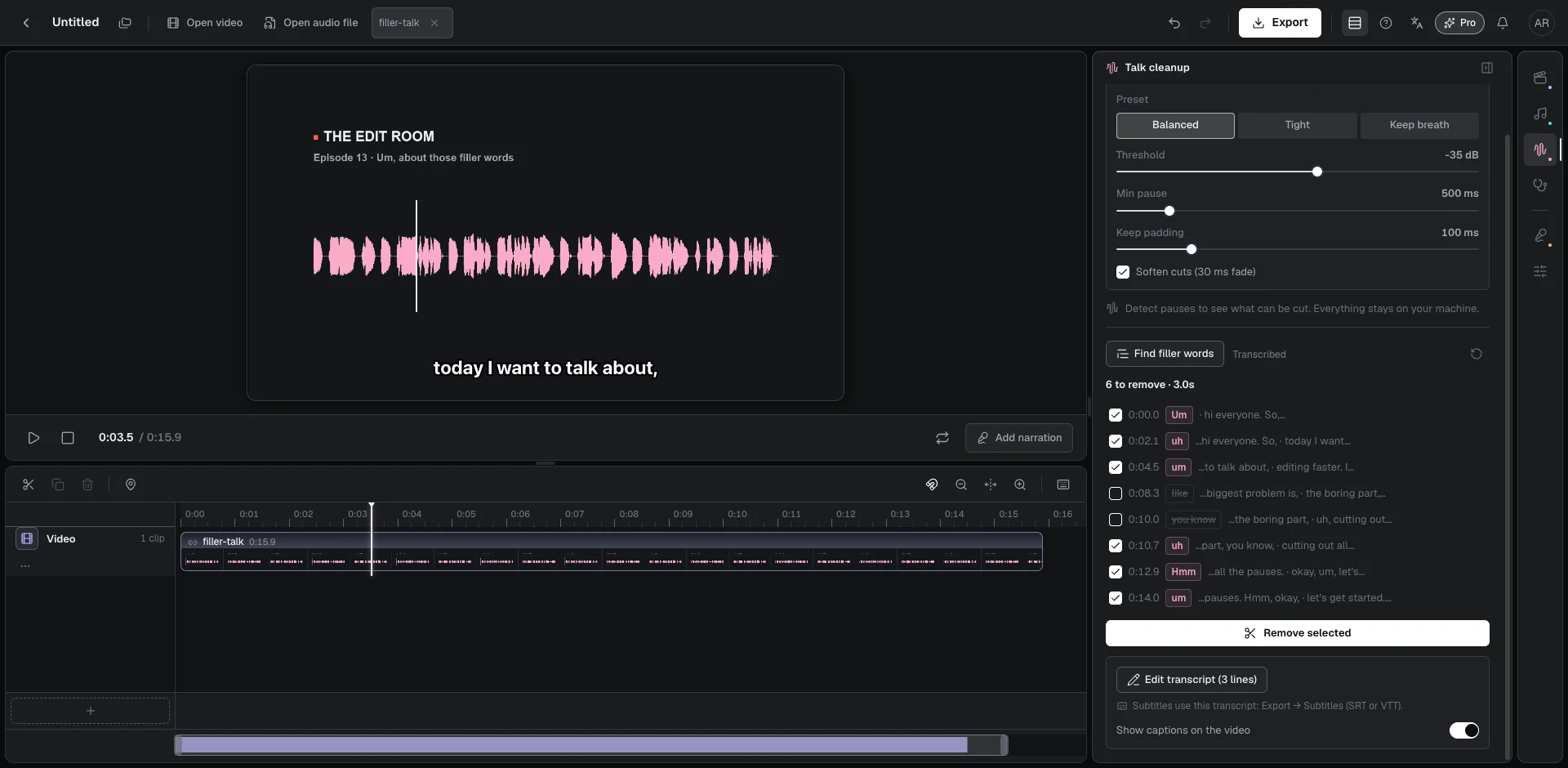
- Speech-to-text transcription extracts subtitles as clean SRT or VTT files, with automated cue timing checks and global timecode shifting before export.
- Review and correct dialogue sentence by sentence in the transcript editor, with instant full-text copying and auto-saved edits.
- Word-level alignment keeps captions in sync after cutting pauses or filler words, with optional burnt-in captions on MP4 exports.
Generate auto subtitles and add subtitles to video without uploading your video footage. Beat2Cut transcribes dialogue directly from a compressed audio copy, creating an editable transcript and word-timed SRT or VTT files. Burn captions into video for social clips, or export subtitle files for external editors. Transcription costs 10 credits per file on Free from your 150 one-time free credits, with deliveries included on Pro.
Generating subtitles starts inside Beat2Cut Studio on the right-hand Talk cleanup panel. Clicking Find filler words launches speech-to-text transcription powered by Whisper on Cloudflare Workers AI. A single transcription pass simultaneously detects hesitation words and produces a comprehensive timestamped transcript for captioning. You can rely on automatic language detection or select specific languages including English, Chinese, Spanish, French, and German before initiating the scan.
Privacy is prioritized by strictly separating audio transcription from your video media. Your original video footage never leaves your computer. The browser extracts the dialogue track, converts it into a lightweight 16 kHz mono MP3 file, and asks for your explicit consent on the first run before transmitting this compressed audio slice. The resulting transcript is delivered back to your browser session and saved only in this browser, so the transcript of a client recording never sits on our servers.
Every automated transcript requires quick human verification for proper nouns and technical terms. Opening the Edit transcript dialog presents your dialogue line by line with corresponding timestamps. Clicking any timecode jumps the timeline playhead straight to that spoken phrase for instant listening. You can edit misheard words directly, and every change auto-saves upon pressing Enter or moving focus away. A dedicated button copies the full clean transcript text to your clipboard with one click.
Subtitles stay in sync after you trim speech. Beat2Cut maps captions down to individual words on your edited timeline. When you delete silent pauses or remove checked filler words, the subtitle cues automatically shift forward in lockstep with the edited audio. Eliminated hesitation sounds are excluded from the final text, ensuring viewer captions match the trimmed audio without requiring manual re-timing or subtitle nudging.
You can burn captions into video directly for platforms like TikTok, YouTube Shorts, and Instagram Reels. Toggling the Show captions on the video switch displays crisp preview subtitles over the video player. When exporting a finished MP4, check Burn subtitles into the video to render permanent open captions onto the image with high-contrast white text and black outlines. Vertical video exports position subtitles 22% above the bottom edge to clear platform buttons and descriptions.
When finishing your project in external editing software, export standalone subtitle files under Export in the top navigation bar. Beat2Cut generates standard SRT and VTT formats compatible with Premiere Pro, DaVinci Resolve, Final Cut Pro, and web players. Before downloading, an automated timing review checks for overlapping cues, excessively fast reading speeds, or brief flashes under one second. You can also apply a global timecode shift across all cues to match master project timelines.
Beat2Cut focuses on reliable, clean caption generation rather than animated karaoke effects or exaggerated styling templates. The platform provides readable, high-contrast open captions and industry-standard subtitle text files. There are no automated caption translation tools, animated bouncy presets, or custom font styling pickers. It delivers exactly what video editors and content creators need: fast speech transcription, dependable word-level synchronization, and frictionless delivery.
Billing is predictable and requires a free account to track usage. Transcribing an audio file costs 10 credits on Free, drawn from the 150 one-time free credits granted at registration. Transcripts are cached locally, so editing text or reviewing lines never triggers duplicate charges. Exporting standalone SRT or VTT subtitle files costs 5 credits per delivery on Free, and rendering a finished MP4 export costs 10 credits. Beat2Cut Pro includes transcription, subtitle deliveries, and MP4 exports without credit deductions.
Transcribe speech, review captions, and export subtitles
- 01Open your video in Beat2Cut Studio and head to the Talk cleanup panel.
- 02Click Find filler words to transcribe the dialogue and generate cues.
- 03Open Edit transcript to correct words or enable caption preview on video.
- 04Export SRT or VTT files, or render an MP4 with burnt-in captions.
Questions
- How do I generate SRT subtitles from my video?
- Open your video in Beat2Cut Studio and click Find filler words in the Talk cleanup panel. After transcription finishes, open Export in the top bar and select Subtitles to download standard SRT or VTT files.
- Does generating auto subtitles upload my entire video?
- No. Your video never leaves your device. Beat2Cut extracts only dialogue, compresses it into a lightweight mono audio file, and sends that for transcription after asking your permission. The generated transcript is saved locally in your browser.
- How do burned-in video captions work for social media?
- Turn on 'Show captions on the video' for real-time preview. When exporting an MP4, check 'Burn subtitles into the video'. Captions render in crisp white with black outlines, positioned 22% from the bottom on vertical videos to clear social app UI.
- How much does subtitle generation and export cost?
- Transcription costs 10 credits per file on Free from your 150 one-time free credits. Exporting SRT or VTT subtitles costs 5 credits, and MP4 export costs 10 credits. Pro includes unlimited transcription, subtitle deliveries, and MP4 rendering. Sign-in is required.